
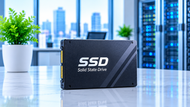
Storage affects almost everything you do on a computer. It shapes how fast your system starts, how quickly apps open, how smoothly projects load and how fast files move. That’s why Solid State Drives or SSDs are now standard in laptops, desktops, gaming PCs, workplaces and business systems.
But choosing a drive isn’t just about comparing advertised read and write speeds. The interface, capacity, endurance, compatibility, thermal behavior and intended workload all matter. They decide whether a particular model is actually a good fit for you.
This guide explains how solid state storage works, the main types available, how much space different users may need and what to check before buying in 2026.
Quick Answer: An SSD stores data in flash memory and has no moving parts. It is much faster than a traditional hard drive. For most people in 2026, a 512GB or 1TB NVMe SSD is the sweet spot. Check interface, capacity, endurance and cooling before buying.
Understanding SSDs
What Is an SSD?
A Solid State Drive usually shortened to SSD, is a storage device that saves data in flash based memory instead of on the rotating magnetic platters used in hard disk drives. Because it has no spinning platters or moving read/write heads it can access information quickly and work quietly.
Internal models are installed inside computers. External versions connect through supported interfaces for portable storage, file transfers and backups.
How SSDs Work
A solid state drive uses a controller to manage communication between the host system and its flash storage. The controller handles tasks like data placement, error correction, wear management and transfers.
When the system requests information, the drive locates the required data and sends it through the drive interface. Modern NVMe models normally use PCIe connectivity and the NVMe protocol, which was designed for efficient access to high-speed storage.
SSDs vs Traditional Hard Drives
The key difference is how data is stored. HDDs use rotating magnetic platters, while solid state drives use flash based storage cells. This gives SSDs much lower access latency and makes them well suited to working systems, applications, gaming and workloads involving frequent data access.
HDDs remain useful when high capacity and lower cost per terabyte matter more than fast response times.
Key Components of an SSD
The controller and flash memory are the core components of a solid state drive. Depending on the design, a model may also include DRAM or other cache technologies to support internal processes.
Firmware controls functions such as data management, error correction, and background maintenance. Enterprise products may add higher endurance, power loss protection and features intended for sustained workloads.
Different Types of SSDs
SATA SSDs
SATA SSDs remain a practical choice for everyday computing and hardware upgrades. They can provide a major improvement in responsiveness when replacing an HDD in an older desktop or laptop.
Their performance is limited by the SATA interface so they usually cannot match modern PCIe-based NVMe products for maximum throughput.
NVMe SSDs
NVMe drives use the NVMe protocol over PCIe connectivity and are designed for high-speed storage. They are well suited to gaming PCs, workplaces, virtualization and demanding business applications.
Actual results depend on the controller, memory architecture, PCIe generation, firmware, cooling and workload rather than the interface specification alone.
In 2026, PCIe Gen4 NVMe drives still offer the best value for most users. PCIe Gen5 drives are faster, but they often run hotter and need a good heatsink or airflow.
M.2 SSDs
M.2 describes a physical form factor rather than a storage protocol. An M.2 drive can use SATA or NVMe which makes compatibility checks important before purchase.
Confirm the supported M.2 size, connector configuration, interface and PCIe generation on the computer or motherboard.
PCIe SSDs
PCIe-based storage uses the PCI Express interface to connect with the host platform. It provides more bandwidth than SATA and is extensively used for performance-focused storage.
A newer PCIe generation only delivers its full benefit when the platform and drive support it and the workload can take advantage of the extra bandwidth.
External & Portable SSDs
External and portable models are useful for moving large files, storing media, creating backups and working across several computers. Actual transfer rates can vary with the USB interface, enclosure, cable, controller and host system.
For professional workflows, sustained transfer behavior and thermal performance are more useful indicators than short burst speed figures alone.
In 2026 USB4 and Thunderbolt 5 external drives are becoming more common for high-speed portable work. Just make sure your computer supports the same standard to get the full speed.
Enterprise & Data Center SSDs
Enterprise and data center models are designed for environments where storage may remain active for long periods and workloads can be demanding. They can support databases, virtualization, analytics, cloud infrastructure and other continuous applications.
Endurance, reliability features, firmware support, power loss protection and predictable behavior can matter more than consumer standard scores.
Choosing the Right SSD Capacity for Your Needs
Personal Computers and Laptops
For basic browsing, email, documents, and office applications, 256GB may be workable, although available space can become limited as software and files accumulate. A 512GB drive offers more flexibility for daily use, while 1TB is a comfortable option for people who install larger applications or keep large amounts of data locally.
Gaming Systems and High-Performance PCs
A 1TB model can suit a smaller game library, but modern titles can consume significant space. For users who keep some large games installed 2TB is often more practical. Those who also store recordings, captures or media libraries may prefer 4TB or more.
Creative Workstations
Creative work can consume storage quickly because projects may contain source files, caches, previews, exports, and high-resolution media. Around 1TB may suit lighter photo or design workloads, while 2TB or more gives larger projects extra working room.
Professional video production can require 4TB+ when source footage and active project files remain in the same workplace.
Business and Office Computing
Many office computers can work comfortably with 512GB mostly when documents are stored on network or cloud platforms. Users working with larger applications, local datasets or project files may find 1TB more suitable.
Capacity should reflect the amount of information actually kept on the endpoint rather than a one-size-fits-all target.
AI and Machine Learning Infrastructure
AI workloads can require local space for datasets, models, checkpoints, logs and temporary processing files. Smaller projects may work with 2TB-4TB while larger datasets and active pipelines can require 4TB-8TB or more. Planning should include working data and temporary files rather than considering final model size alone.
Enterprise Storage Systems
Enterprise requirements vary widely with workload, retention, redundancy and data growth. Smaller placements may use drives in the 2TB-8TB range while larger environments can require substantially more. Capacity should be planned together with endurance and the complete storage architecture.
Cloud Computing and Virtualization
Virtualization hosts need room for virtual machine images, snapshots, working systems, logs, application data and future growth. Smaller environments may start around 2TB-4TB, while hosts running multiple virtual machines can need 4TB-8TB or more. Administrators should also leave suitable free space for continued process.
Data Center Storage Solutions
Data center deployments vary from modest storage pools to large distributed environments. Drives in the 4TB-16TB class may suit selected workloads while larger systems can prioritize capacity per device, endurance, power efficiency and predictable sustained behavior. The appropriate capacity depends on the workload and complete storage design.
Web Hosting and Database Servers
Requirements depend on application size, traffic, logs, backups and retention policies. Smaller websites may operate with a few hundred gigabytes while business databases can require some terabytes. Larger hosting environments may need substantially more when multiple databases, replicas, logs and application workloads share the same storage infrastructure.
How SSD Performance Affects Your Experience
Read and Write Speeds
Read and write figures show how quickly data can be transferred, particularly during sequential processes involving larger files. They are useful comparison points but higher advertised throughput does not automatically produce a proportionally faster daily experience. System architecture and workload have a major influence on real world results.
Random Performance (IOPS)
IOPS or input/output processes per second measures how many storage operations a drive can process over a given period. Random performance becomes especially relevant to databases, virtualization, multitasking and systems handling many small requests at the same time.
SSD Controller and Cache
The controller manages communication between the host and flash storage. Cache can improve short bursts of activity but sustained behavior depends on the complete design including memory type, firmware, controller characteristics, cooling and workload.
Endurance Ratings (TBW)
TBW stands for Terabytes Written and indicates how much data a manufacturer rates a drive to handle under specified conditions. For heavy use systems, compare the rating with expected write activity, warranty terms and workload requirements rather than treating capacity as the main measure of long life.
Thermal Performance
High performance PCIe drives can generate substantial heat during sustained activity. When temperatures rise, some models may reduce performance to protect the hardware. Proper airflow or an appropriate heatsink can therefore be important in workplaces compact PCs and servers.
What to Consider Before Choosing an SSD
SSD Type and Interface
Start by checking which interface the system supports. Depending on the platform the requirement may be SATA, NVMe over PCIe or a specific M.2 configuration. A drive can fit physically while still being incompatible with the system.
Storage Capacity Requirements
Consider current storage usage, applications, project files, backups free space requirements and expected growth. Choosing only enough space for current data may create another upgrade requirement sooner than planned.
Device Compatibility
For desktops and laptops verify the connector, M.2 dimensions, interface and supported PCIe generation. Server placements require extra checks including vendor qualification lists, firmware support, hot-swap requirements and platform compatibility.
Performance, Reliability, and Warranty
Compare sustained performance, random I/O, endurance, thermal characteristics, warranty coverage and manufacturer support alongside headline speeds. One common buying mistake is paying extra for specifications the host platform cannot actually use.
For broader storage planning, the Storage Devices Guide 2026: Performance, Security & Scalability can help place SSD selection within a wider storage strategy
Future of SSD Technology
PCIe Gen5 and Next-Generation SSDs
PCIe Gen5 has increased the bandwidth available to well suited storage devices and allowed newer high performance designs. Future improvements will continue to raise potential throughput but practical gains will still depend on platform support, cooling, workload behavior and system architecture.
AI-Optimized Storage
AI infrastructure can generate heavy storage traffic as datasets, models, checkpoints and temporary processing files move through the system. This is increasing interest in storage designed around high throughput well organized data access, strong endurance and reliable performance under sustained workloads.
Higher-Capacity SSDs
Higher capacity drives allow more information to be stored on fewer devices which can simplify some storage designs. However capacity should be evaluated alongside endurance, redundancy, cooling, power consumption and deployment cost.
Energy-Efficient SSD Technologies
Power efficiency is becoming more relevant as storage requirements grow. In laptops, lower power use can contribute to battery efficiency while data center operators may consider storage efficiency as part of broader power and cooling management.
Conclusion
Choosing an SSD is about matching storage technology to the system and workload. An everyday laptop has different requirements from a gaming PC, creative computer unit, virtualization host, database server or AI environment. Start with compatibility and capacity, then compare performance, endurance, thermal behavior, warranty and expected growth. This approach helps buyers choose a drive that provides useful performance and reliability without paying for capabilities the system cannot fully use.
Frequently Asked Questions
A: An SSD stores data in flash memory and uses a controller to manage data access, transfers, error correction and other internal functions.
A: An SSD uses flash based storage and has no moving parts while an HDD stores data on rotating magnetic platters. SSDs mostly provide faster access however HDDs remain useful for economical high capacity storage.
A: For a modern computer with compatible hardware, an NVMe SSD is often a strong performance option. SATA models remain useful for older systems or devices limited to the SATA interface.
A: 512GB can suit many everyday computers while 1TB provides more room for applications and local files. Gaming, creative, business and infrastructure workloads may require 2TB or more depending on usage.
A: Check the interface, physical compatibility, capacity, sustained performance, random I/O, endurance, thermal behavior, warranty and expected storage growth. Server buyers should also confirm platform qualification and firmware support.
A: Lifetime varies by model, memory technology, workload, write volume, operating conditions and endurance rating. TBW specifications and warranty terms provide useful guidance when comparing drives.
A: They can be used in compatible personal systems but their extra endurance and enterprise focused features may not defend the higher cost for ordinary workloads.