

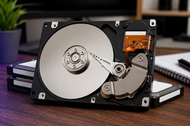
Storage needs keep growing, and internal hard drives are still doing the heavy lifting. Your photos, videos, work files, game libraries, and business records all have to sit somewhere, and a good internal hard drive gives you room to keep them without paying a fortune per gigabyte.
People sometimes assume spinning drives are on their way out. They aren't. The truth is closer to the opposite.
As AI systems, video projects, and business databases keep pushing data volumes higher, the demand for affordable, high-capacity storage has shot up.
Hard drives fill that gap in a way nothing else quite matches on price.
Why Internal Hard Drives Still Matter in 2026
A quick number tells the story. Roughly 2,017 exabytes of hard drive capacity is expected to ship in 2026, and about 18% of that demand traces directly to the AI buildout.
That share climbs to 43% by 2028. So the same technology people call "old" is powering some of the newest workloads on the planet.
For everyday users, the appeal is simpler. You get a lot of space for your money, the drives are easy to install, and they hold data reliably for years. For businesses, internal hard drives keep costs sane when you're storing terabytes you rarely touch but can never lose.
Role of Internal Hard Drives in Modern Data Systems
Why Internal Hard Drives Are Still Widely Used
An internal hard disk sits inside your PC or server and connects straight to the motherboard, usually over a SATA cable.
That direct link means steady performance, no messing with USB ports, and better protection from knocks and power surges than an external drive.
Cost is the other big reason. A hard drive gives you far more storage per dollar than a solid state drive of the same size. When you need bulk space and don't need blistering speed, an HDD wins every time.
Increasing Data Workloads
Files keep getting bigger. A single 4K video project can eat hundreds of gigabytes. Photographers shoot in RAW. Gamers install titles that pass 150GB each. Businesses log every transaction, email, and backup.
All of that has to land on storage, and internal hard drives soak up these growing piles without draining your budget.
Balance Between Performance and Capacity Needs
You don't always need the fastest storage. You need the right storage. Many people run a small SSD for their operating system and apps, then add a large internal hard drive for everything else.
That split gives you snappy boot times and huge storage at the same time, which is a smart way to spend your money.
Importance in Business and Enterprise Systems
Companies live on their data. Customer records, financial files, project archives, and years of backups all need a home that's dependable and expandable.
Internal hard drives, especially in servers, handle this job around the clock and scale up as the business grows.
How Internal Hard Drives Deliver Performance
Data Read and Write Mechanism
Inside every hard drive, spinning platters store your data as magnetic marks.
A tiny arm with read/write heads floats just above the surface and moves to the right spot to grab or save information. It's mechanical, precise, and surprisingly tough.
Role of RPM in Performance Speed
RPM means how fast the platters spin, measured in rotations per minute. Most performance drives run at 7,200 RPM, and that speed helps them find and move data quickly.
Slower 5,400 RPM drives sip less power and run quieter, which suits laptops, while 7,200 RPM drives feel more responsive in desktops and servers.
Cache Memory and Processing Efficiency
Cache is a small pool of fast memory built into the drive. It holds data the drive expects to use next, so common tasks feel quicker.
Modern high-capacity drives often carry 256MB or 512MB of cache, and that buffer smooths out performance when you're copying big files or juggling several tasks.
SATA Interface and Data Transfer Speed
Almost every internal hard drive today uses the SATA interface, running at 6 gigabits per second (often written as SATA 6Gb/s).
This connection is standard across desktops, laptops, and servers, so compatibility is rarely a headache. A fast 7,200 RPM CMR drive can push sustained transfers around 190 to 250MB/s, which is plenty for storage duties.
Internal Hard Drives for Different Computing Systems
Desktop Hard Drive for High-Performance Computing
Desktop hard drives sit in the 3.5-inch form factor and lean toward speed and capacity. They're the workhorses for gamers, editors, and anyone who wants a big local library.
With 7,200 RPM and generous cache, a desktop hard drive keeps your files close and quick to reach.
Laptop Hard Drive for Portable Systems
Laptop hard drives use the smaller 2.5-inch size to fit tight spaces. They focus on power efficiency and quiet running, which matters when you're on battery.
You trade a little speed for portability, and for students or casual users that's a fair deal.
Server Hard Drive for Enterprise Infrastructure
Server hard drives are built for nonstop work. They handle constant read and write requests, resist vibration when packed together in multi-drive bays, and carry high workload ratings, often 550TB per year.
This is the class you want when data can never take a day off.
Printer Hard Drive in Business Workflows
Big office printers and copiers often hold an internal drive of their own. These printer hard drives store print queues, scanned documents, and job settings so the machine can process large batches without choking. In busy offices, that drive keeps the printing flowing.
Internal Hard Drives for Data Storage Requirements
Large-Capacity Storage for Heavy Files
When you deal with video, design files, or huge datasets, capacity rules everything. Internal hard drives now reach well past 20TB in a single unit, so you can keep massive libraries on one drive instead of scattering them across many.
Long-Term Data Retention and Archiving
Some data you rarely open but must keep for years. Hard drives handle this "cold storage" role beautifully. They store archives cheaply, hold data safely when powered down, and cost far less than keeping everything on flash.
Backup Solutions for Personal and Business Use
A backup is only useful if it's affordable enough to actually do. Internal hard drives make regular backups painless because the space is cheap. Home users protect family memories, and businesses protect records they're legally required to retain.
Enterprise-Level Data Storage Management
Large organizations store data across many drives working together. Internal hard drives form the base layer of these systems, giving companies the room to grow their storage pools year after year without runaway costs.
Desktop Hard Drive Performance
For gaming and high-performance work, a 7,200 RPM desktop hard drive holds big game libraries and loads levels at a solid pace, especially when paired with an SSD for your operating system.
For creative and professional use, editors and designers need space for raw footage, project files, and exports. A large desktop drive keeps all of it on hand without constant shuffling.
For multitasking and system responsiveness, cache and spindle speed team up so the drive keeps pace when you've got several programs open at once.
Choosing the right desktop hard drive comes down to matching capacity and speed to your work. Gamers and creators usually want 7,200 RPM with CMR recording and at least 256MB of cache.
One point worth knowing: always pick CMR (Conventional Magnetic Recording) over SMR drives for anything you care about, since CMR writes data in clean, non-overlapping tracks and holds up far better under heavy use.
Laptop Hard Drive Efficiency and Portability
A laptop hard drive keeps things compact and power-friendly. The 2.5-inch build fits slim chassis, and lower power draw means longer battery life.
For everyday computing and student use, these drives handle documents, browsing, media, and coursework with room to spare. They're a budget-friendly way to add storage to an older laptop.
The balance between speed and capacity favors sensible trade-offs. Many laptop drives run at 5,400 RPM to stay quiet and cool, which is fine for general tasks even if it's not the fastest option.
Reliable use cases include secondary storage, media libraries, and backup drives. Plenty of people now run an SSD for the system and a laptop hard drive for bulk files, getting the best of both.
Server Hard Drive for Enterprise and Data Centers
Server drives are made for 24/7 workloads. They spin nonstop, handle steady streams of requests, and carry high annual workload ratings so they don't wear out under pressure.
They shine in RAID configurations, where several drives work as one to add speed and redundancy. If one drive fails, your data survives, and server drives are tuned with special error recovery timing that keeps RAID arrays stable.
They also support cloud and virtualization setups, feeding the storage that virtual machines and hosted services rely on.
For high-capacity enterprise needs, helium-filled server drives now pack huge storage into each slot. Helium creates less friction than air, so these drives run cooler, use less power, and last longer, which is exactly what a 24/7 data center wants.
Printer Hard Drive in Business Environments
In offices, an internal printer drive quietly does a lot. It manages print queues and large jobs, holding documents in line so big batches print smoothly instead of stalling.
It supports secure document processing, storing sensitive files temporarily and letting staff release print jobs with a code so papers don't sit unclaimed on the tray.
It helps with workflow by keeping scans, saved settings, and frequent forms ready to go.
The payoff is printing efficiency. Fewer jams in the queue, faster turnaround on large jobs, and smoother shared use across a busy team.
Internal Hard Drive vs Modern Storage Technologies
HDD vs SSD Performance
SSDs are faster, quieter, and more shock-resistant. They win on raw speed hands down. But hard drives win on capacity and cost, and for storing large amounts of data that you don't need in a split second, that matters more than pure speed.
Cost per GB Advantage of HDDs
This is the hard drive's superpower. Dollar for dollar, an HDD gives you far more space. If you need maximum storage under a tight budget, nothing beats a spinning drive.
Use Cases Where HDD Is Still Better
Bulk storage, backups, media libraries, surveillance footage, and cold archives all favor hard drives. Write-heavy jobs and long-term storage where speed isn't the priority also lean HDD.
Hybrid Storage Systems
The smartest setups mix both. An SSD runs your operating system and active apps for speed, while an internal hard drive stores everything else for cheap. Yes, SSD and HDD work together in the same machine, and that combo gives you speed and space at once.
Important Factors Before Buying an Internal Hard Drive
Start with storage capacity
Guess how much space you need, then go one size bigger, because data always grows faster than you expect.
Check the RPM
Go 7,200 RPM for desktops and servers where responsiveness counts, and 5,400 RPM for laptops where quiet and cool matter more.
Look at cache memory
More cache helps with large transfers and multitasking, so 256MB or 512MB is a good target on bigger drives.
Confirm SATA compatibility
Nearly all internal drives use SATA 6Gb/s, so this is usually simple, but it's worth a quick check against your motherboard.
Think about heat, noise, and durability
Drives that run cooler last longer. Helium drives and CMR recording both help here, and a decent workload rating tells you how much daily use a drive can take.
Choosing the Right Internal Hard Drive
Home users doing browsing, media, and family backups do fine with a mid-capacity CMR drive at a friendly price.
Gaming and creative pros want 7,200 RPM, high capacity, and a healthy cache to handle big files and libraries.
Offices and businesses should look at NAS-rated or higher workload drives that hold up under shared, all-day use.
Enterprise and server systems need drives built for RAID, 24/7 spin, and top-tier workload ratings, often helium-filled for cooler running.
Reliability and Maintenance of Internal Hard Drives
Average Lifespan and Durability
Under decent cooling and normal use, a good CMR NAS drive gives you five to seven years of solid service, and enterprise helium models often pass eight years in controlled setups. Treat a drive well and it repays you.
Causes of Performance Degradation
Drives tend to show slower response after about four years, especially under heavy random-write loads. Age, constant use, and heat all chip away at performance over time.
Heat and Vibration Effects
Heat is a drive's biggest enemy, and vibration is a close second. In multi-drive setups, drives sitting side by side shake each other, which is why server and NAS drives include vibration resistance that desktop drives skip.
Maintenance and Monitoring Practices
Keep drives cool with good airflow. Watch their health with the built-in SMART monitoring most drives support, which flags problems before they turn into failures. And never lean on a single drive for anything precious. Keep backups, plan replacements before drives get old, and you'll rarely lose data.
The Future of Internal Hard Drives in AI and Data-Driven Systems
The capacity race is on. New recording methods like HAMR (Heat-Assisted Magnetic Recording) use a tiny laser to write data more densely, pushing drives to 30TB, 40TB, and beyond, with a roadmap aiming at 100TB later this decade.
AI is the driving force. Nearline hard drive capacity is essentially sold out through late 2027 as AI and data centers snap up every drive makers can produce.
These systems generate enormous amounts of data that has to live somewhere affordable, and hard drives are that somewhere.
Hybrid storage is becoming the norm rather than the exception. Fast flash handles active data while high-capacity hard drives store the bulk, and that split keeps costs manageable at every scale.
The takeaway on long-term relevance is clear. Hard drives aren't fading. For bulk storage, backups, and archives, they remain the most cost-effective option around, and demand is climbing, not falling.
Conclusion
Internal hard drives remain one of the most practical storage choices you can make in 2026. They give you room to grow, they cost far less per gigabyte than flash, and they hold your data reliably for years when you look after them.
The real skill is matching the drive to the job. A laptop drive for portability, a 7,200 RPM desktop drive for gaming and creative work, a server drive for always-on enterprise loads, and a printer drive for smooth office workflows. Pick CMR recording, aim for a sensible RPM and cache, and keep the drive cool.
Do that, and your storage will keep up with whatever you throw at it, whether that's a growing photo collection or a business database that never stops filling up.
Want the bigger picture on how all your storage pieces fit together? Our Storage Devices Guide 2026: Performance, Security & Scalability, walks through the full range of storage options side by side, from internal hard drives and SSDs to network and enterprise systems, so you can plan a setup that's fast, safe, and ready to scale.
Frequently Asked Questions
A: They boost performance by giving your system room to breathe and store data locally. For the biggest speed jump, pair a hard drive with an SSD, running your operating system on the SSD and bulk files on the HDD.
A: Yes. Server drives are built for 24/7 operation, high workload ratings, and RAID setups, which makes them a strong fit for the heavy, constant demands of AI systems and enterprise data centers.
A: Look for CMR drives with high capacity and a solid workload rating. NAS-rated and enterprise helium drives are excellent picks because they hold data reliably and are built to run for years.
A: Absolutely. Data centers rely heavily on high-capacity nearline hard drives, and demand is so strong that supply is largely committed to major data center customers well into 2027.
A: They keep sensitive data in-house on drives you control, work in RAID arrays for redundancy, and pair with monitoring and backup routines that protect against loss. Keeping data on internal drives also reduces exposure compared to constantly moving files around.
A: Desktop drives focus on capacity and speed for a single machine. Server drives are made for nonstop use, handle vibration in multi-drive bays, carry higher workload ratings, and include RAID-friendly error recovery that desktop drives lack.
A: An internal hard disk connects directly to the motherboard, usually offering steadier performance and better protection from surges and physical damage. External drives trade some of that for portability and easy plug-and-play use.
A: With good cooling and normal use, expect roughly five to seven years from a quality CMR drive, and often longer from enterprise helium models. Performance may slow a little after about four years of heavy use.
A: Yes, and it's a popular setup. Run your operating system and main apps on an SSD for speed, and use an internal hard drive for large files and backups. You get quick response times and plenty of cheap storage at once.