

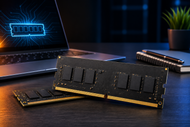
If you want one answer before reading the rest: buy 16GB laptop RAM for normal work, 32GB if you edit video, write code, or run local AI tools, and treat 8GB as a bare minimum you will regret within two years.
The harder part is that many laptops sold in 2026 will never accept a second stick of memory, so the number you pay for on day one is the number you keep.
Memory demand has climbed fast. Windows 11 sits on more RAM at idle than Windows 10 ever did, Copilot-style assistants and background AI features keep models resident in memory, and a normal browser session with twenty tabs can swallow several gigabytes on its own. The workload grew while a lot of laptops got thinner.
The formats got messier too. You now choose between removable SO-DIMM sticks, memory soldered flat to the board, and the newer CAMM2 modules showing up in premium and business machines.
Each one changes what happens two years from now.
What Is Laptop Memory (RAM)?
Laptop memory, written on spec sheets as RAM (Random Access Memory), is the fast temporary workspace your laptop uses for everything it is doing right now. Open a spreadsheet, and it loads from the drive into RAM. Open eleven browser tabs, a video call, and Photoshop, and all of them sit in RAM at the same time.
RAM is volatile. Cut the power or shut down, and it empties completely. Nothing you save lives there. That is the job of your drive.
The link to performance is direct. When RAM runs out, Windows or macOS starts shuffling data to the drive using a page file or swap.
Your drive is far slower than memory, so you feel it as stutter, spinning cursors, tabs reloading when you click back to them, and apps that take a beat too long to switch. People blame the processor for this constantly. It is memory nine times out of ten.
That is why laptop memory (RAM) matters at the point of purchase and not just on a benchmark chart. A weak processor slows you down a little across the board. Too little RAM stops you dead the moment you open one thing too many.
RAM vs Storage: Understanding the Difference
RAM is your desk. Storage is your filing cabinet. You pull files out of the cabinet, spread them on the desk to work, then put them back when you finish. A bigger cabinet does not give you a bigger desk.
Storage means your SSD or older HDD, and it holds data permanently: the operating system, apps, photos, documents, everything that survives a reboot. Capacity is measured in the same GB and TB units as memory, which is exactly why the two get mixed up on product listings.
The speed gap is enormous. A fast PCIe 4.0 NVMe SSD reads at roughly 7GB per second. DDR5 laptop memory moves data at somewhere near 40 to 50GB per second with far lower latency. Even the quickest drive on the market is nowhere near a substitute.
The cost of confusing them is real money. A buyer with a stuttering 8GB laptop upgrades to a 2TB SSD, spends a decent amount, and the machine still stalls with fifteen tabs open. The drive was never the bottleneck. Free space on your SSD does not fix a memory shortage, and clearing files will not either.
Laptop Memory Module Types: What's Inside Your Laptop
Three physical formats cover almost every laptop sold today, and they behave very differently once the machine is yours.
SO-DIMM RAM: The Upgradeable Standard
SO-DIMM stands for Small Outline Dual In-Line Memory Module, the short memory stick built for laptops and compact PCs. DDR4 SO-DIMM uses 260 pins, DDR5 SO-DIMM uses 262, and both slide into a slot at an angle before clipping down flat.
The good part is that SO-DIMM is removable. Take off the bottom panel, release two clips, swap the stick. Anyone reasonably careful can do it, and any repair shop certainly can.
You find SO-DIMM in mainstream consumer laptops, most business machines, and gaming or workstation models where owners expect to add memory later.
One warning worth repeating: desktop DIMM sticks are 288 pins and physically longer. They do not fit laptops, no matter what the listing photo suggests.
When you shop for RAM for laptops, the words SO-DIMM or "laptop memory" need to appear on the product, not just DDR4 or DDR5.
Soldered RAM: Thin, Fixed, and Final
Soldered memory means the DRAM chips are attached directly to the motherboard with no slot and no socket. There is nothing to remove. Most soldered laptop RAM today is LPDDR5 or LPDDR5X, the low-power version of DDR5 built for battery life and tight spaces.
You will find it in ultrabooks, slim consumer models, and every Apple Silicon MacBook. Manufacturers pick it because LPDDR5X draws less power, runs cooler, and lets the chassis get thinner than a slot allows. Speeds are strong too, reaching 8533 MT/s on current parts.
The trade is permanent. An 8GB soldered laptop cannot become a 16GB laptop, ever, at any price. If the spec sheet says LPDDR5X and lists no slots, spend the extra now for the higher tier or accept the machine's ceiling for its whole life.
SO-DIMM vs CAMM Memory Explained
CAMM stands for Compression Attached Memory Module, and it is the first genuinely new laptop memory format in years.
Dell built the original CAMM for its Precision mobile workstations in 2022, then handed the design to JEDEC, the body that sets memory standards. JEDEC members voted to build an open standard around it in late 2022, and the result is CAMM2.
The mounting is what changes. A SO-DIMM slides into an edge connector and sits at a slight height above the board.
A CAMM2 module lies flat and is held down by screws against a compression connector with hundreds of gold contact points. That saves vertical space and shortens the electrical path, which helps at high speeds.
CAMM2 also fixes a limitation of SO-DIMM. One CAMM2 module carries a full 128-bit dual-channel connection on its own, where SO-DIMM needs two matched sticks for the same thing.
The standard covers DDR5 CAMM2 up to 128GB per module and LPDDR5/LPDDR5X in the LPCAMM2 form, which brings something rare: low-power memory you can actually replace.
For buyers, the practical point is to check the memory line on the spec sheet of any premium or business laptop you are considering in 2026.
CAMM2 is spreading through that segment, and a machine with it is upgradeable in a way its soldered rival is not.
Module format is only one layer of the decision. Our Ultimate Memory Guide 2026: Memory Type and Installation Precautions covers memory types across laptops and desktops, voltage and compatibility rules, ESD handling, and the installation mistakes that damage modules or bend pins.
DDR4 Laptop RAM vs DDR5 Laptop RAM: Which Generation Do You Need?
You mostly do not get to choose. Your laptop's processor and motherboard decide the generation, and there is no adapter, no BIOS setting, and no workaround.
The gap between them is wide. DDR4 SO-DIMM tops out around 3200 MT/s at 1.2V. DDR5 SO-DIMM starts at 4800 MT/s, sells commonly at 5600, and reaches 6400 and beyond, all at 1.1V with power regulation moved onto the module itself.
DDR5 also splits each module into two independent sub-channels, which helps when a lot of programs pull data at once.
DDR5 laptop RAM is the standard for anything new in 2026, from mid-range consumer models to premium and workstation-class machines. DDR4 laptop RAM has not disappeared, though.
Plenty of budget models, older stock, and large business fleets bought three or four years ago still run it, and buying a 16GB DDR4 kit for a working ThinkPad or Latitude is often the smartest money you will spend all year.
The two never mix. The notch on a DDR5 SO-DIMM sits in a different position from DDR4, so a DDR5 stick physically will not seat in a DDR4 slot. Forcing it damages both.
Check the generation on the manufacturer's spec page or in Task Manager before you order, not after the parcel arrives.
Laptop RAM Requirements: How Much Memory Do You Actually Need?
Here are the tiers, with a straight recommendation for each.
8GB Laptop RAM: Who Is It Still Right For?
8GB works for email, light browsing, streaming, and basic documents, and nothing much beyond that. Windows 11 alone can hold 3 to 4GB before you open a single app, and background AI features keep pushing that floor up.
It is a fair choice for a Chromebook-class machine, a till or reception terminal doing one job, or a spare unit on a tight budget. It is a poor choice for anyone who keeps more than a dozen tabs open next to Teams.
If the 8GB device is soldered, think harder. A non-upgradeable 8GB laptop bought in 2026 will feel slow well before the hardware wears out, and you cannot rescue it later.
16GB Laptop RAM: The 2026 Sweet Spot
16GB is the right buy for most people. Everyday productivity, remote work, university coursework, photo edits and moderate gaming all sit comfortably inside it, with room left for whatever the next OS update decides to run in the background.
The typical load proves the point: Microsoft 365 open, a video call running, twenty research tabs, a PDF reader and a chat client. That combination will push 8GB into swapping and leave 16GB relaxed.
For businesses, 16GB laptop RAM is the sensible fleet baseline for sales, admin, finance, support and management roles. Standardising there avoids the slow drip of upgrade tickets that a fleet of 8GB machines guarantees.
32GB Laptop RAM: For Power Users and Professionals
Buy 32GB if your work loads big files or many programs at once. Video editing at 1080p and 4K, 3D modelling and rendering, software development with containers or virtual machines running, and data analysis on large datasets all benefit immediately.
Gaming laptops belong here too. Modern AAA titles ask for 16GB on their own, and once you add Discord, a browser, and streaming software on top, 32GB is what keeps frame times steady.
Local AI tools have made this tier far more common. Running a model on your own machine instead of the cloud means holding several gigabytes of weights in memory, and 32GB is where that stops feeling cramped.
In business fleets, 32GB is the power-user tier for engineers, analysts, designers, and anyone living inside virtual machines or heavy ERP clients.
When Is 64GB or More Worth Considering?
64GB and above is for professional 4K and 8K video work, large CAD assemblies, scientific computing, and laptops replacing a desktop workstation outright. If your current machine is filling 32GB regularly, the jump pays for itself.
Most buyers will never touch that ceiling. Paying for 64GB to browse and write email buys you nothing but a lighter wallet, since unused memory does not make anything faster.
Where it does get interesting is CAMM2. A single 128GB DDR5 CAMM2 module puts capacity that used to need a tower into a portable chassis, which matters for a small group of specialists and almost nobody else.
Laptop RAM Slot Considerations Before You Buy or Upgrade
Slot count is the first thing to check. Two SO-DIMM slots mean you can run dual-channel now and expand later. One slot means the single stick you buy is your whole ceiling until you replace it.
Dual-channel matters more than most listings admit. Two matched modules give the memory controller a wider path than one, and laptops using integrated graphics feel it most, since the GPU borrows system RAM. A 16GB laptop with 2×8GB commonly outruns the same machine with a single 16GB stick in graphics work.
Every board also has a maximum supported capacity. Some cap at 32GB, others accept 64GB or more. Check the manufacturer's spec page for your exact model number before ordering, because the same model name can ship with different boards across years.
To see what you have on Windows, press Ctrl + Shift + Esc, open Performance, and click Memory. That panel shows total capacity, speed in MT/s, form factor (SODIMM tells you it is removable), and a "Slots used" line such as 1 of 2. If it reads 1 of 2, you have a free slot waiting.
Speed, Latency, and the Numbers on the Spec Sheet
Listings show speed two ways, and both describe the same part. DDR5-5600 means 5600 MT/s, or megatransfers per second. Some sellers still write 2800MHz for that module because the underlying clock is half the transfer rate. Neither is wrong. Just match the number the laptop supports.
Capacity in GB is the number that changes your daily experience most, and it is where your budget should go first. Speed helps at the margins.
CAS latency, printed as CL22 on DDR4 or CL40 and CL46 on DDR5, counts the clock cycles before data starts moving. Lower looks better on paper, though DDR5's faster clock cancels most of the difference in real nanoseconds. Chase it only if you are tuning a gaming or workstation build.
Also read the kit notation carefully. A 2×8GB kit and a 1×16GB stick both give you 16GB, but the pair runs dual-channel while the single stick leaves a slot empty for later expansion. Which one suits you depends on whether you plan to grow to 32GB down the line.
Making the Call on Your Next Laptop Memory Purchase
Run the checks in order: find your module type (SO-DIMM, soldered or CAMM2), confirm the generation (DDR4 or DDR5), pick your capacity (16GB for most, 32GB for heavy work), count your slots, and verify the maximum your board accepts.
Memory has become the spec that ages a laptop fastest, because AI features, browsers, and operating systems keep asking for more of it every year while processors coast along fine. Getting it right at purchase is worth more now than it was even three years ago.
And when the memory is soldered, there is no second chance. One decision, made once, for the whole life of the machine.
CTS Point stocks laptop memory across 8GB, 16GB and 32GB in both DDR4 and DDR5 SO-DIMM, covering consumer machines and business fleets alike.
Browse the Laptop Memory category to match your model, or send us your laptop's model number, and we will confirm what fits before you order.
Frequently Asked Questions
A: Open Task Manager with Ctrl + Shift + Esc, go to Performance, then Memory. If the form factor reads SODIMM and a "Slots used" line appears, your memory sits in slots and can be changed. Soldered memory shows no slot information. Confirm against the manufacturer's spec page for your exact model number, since two versions of the same laptop can differ.
A: Yes, completely. DDR4 and DDR5 SO-DIMM have notches in different positions and will not fit each other's slots, and the processor supports only one generation. Buying a DDR5 kit for a DDR4 laptop leaves you with a module you cannot use.
A: Mainstream and business laptops with removable memory have two SO-DIMM slots. Thin models often have one slot plus some soldered memory, or no slots at all. Ultrabooks and Apple Silicon MacBooks have none. Laptops with CAMM2 use a single module that already runs dual-channel.
A: It helps most when your machine is short on memory. If Task Manager shows memory use above 80% during normal work, adding RAM removes the swapping to disk that causes stutter and slow app switching. If you sit at 40% use, more memory changes very little and your money is better spent elsewhere.
A: Directly. Every open program, browser tab, and background service holds space in RAM. Run out, and the system pushes data to the drive, so switching between apps stalls and tabs reload. More memory means more programs stay live at once, which is the whole reason 16GB has replaced 8GB as the working baseline.
A: Yes. CTS Point carries DDR4 and DDR5 SO-DIMM modules in 8GB, 16GB and 32GB capacities for consumer and business laptops. If you are unsure which module your model takes, send the model number and our team will confirm the generation, capacity limit, and slot configuration before you buy.