

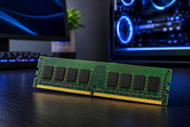
Your computer's memory, most people call it RAM (random access memory), decides how many things your machine can do at once without slowing to a crawl.
A laptop that stutters during a video call, a desktop that freezes with too many tabs open, a server that lags under load, most of the time, the real problem sits inside the memory, not the processor.
What Is Memory?
Memory is the part of a computer that holds data your processor needs right now, not data you're saving for later.
Every RAM module works as short-term storage: open a program, and pieces of it move from your storage drive into memory so the processor can reach them in nanoseconds instead of milliseconds.
You'll find memory doing this job everywhere: a desktop running browser tabs and games, a laptop holding a video call and a spreadsheet open together, a server answering thousands of requests at once, a network switch moving packets through a warehouse without a slowdown.
Memory speed, measured in MT/s (millions of transfers per second) or the older MHz rating, tells you how fast data moves between the module and the processor. Higher speed helps with smoother multitasking, though the benefit fades once your processor becomes the actual bottleneck.
Buy too little or the wrong speed, and every other upgrade you make gets held back by it, which is why memory is worth checking first before you spend money anywhere else in a PC.
How Does Memory Work?
The Data Superhighway
Your processor and RAM talk directly to each other over a dedicated set of wires called the memory bus. There's no middleman. When your CPU needs a piece of data, it pulls it straight from RAM in real time, which is why memory speed and latency matter so much for how snappy your PC feels.
RAM vs. Storage
People mix these up constantly. RAM for PC use acts like your desk, a short-term surface where you keep whatever you're actively working on.
Your SSD or hard drive is the filing cabinet, holding everything long-term even after you shut the machine off. RAM loses everything the second power cuts out; storage doesn't. That's the entire difference in one sentence: RAM is fast and temporary, storage is slower and permanent.
The Role of Cache Memory
Between your processor and your RAM sits cache memory, split into three tiers. L1 is tiny and sits right on the processor core, answering requests in a couple of clock cycles. L2 is bigger and a bit slower. L3 is shared across all cores and acts as a buffer before a request has to go all the way out to RAM.
Together, these three tiers cut down the number of times your CPU has to wait on main memory, and that's where most of your system's real-world speed comes from.
Diverse Types of Memory
Desktop Memory (DIMM)
Desktop memory ships as a DIMM (dual in-line memory module), the standard stick you'll find in any tower PC or workstation. DIMMs are longer and carry more pins than laptop memory, and they support higher capacities per module, which is why desktop memory remains the top pick for gaming rigs and high-performance builds.
Laptop Memory (SO-DIMM)
Laptop memory uses a smaller footprint called SO-DIMM (small outline DIMM), built to fit the tight space inside a notebook. It runs at the same DDR generation as desktop memory but in a shorter, thinner package. Some newer laptops use soldered memory instead, so check before you buy an upgrade.
Server Memory (ECC RAM)
Server memory almost always means ECC RAM, memory that can catch and fix small data errors on its own before they crash an application or corrupt a database. Data centers run thousands of memory modules around the clock, so that built-in error correction isn't optional; it's the difference between a stable server and one that quietly loses data.
Network Memory
Network memory lives inside routers, switches, and other networking gear, and it handles the buffering that keeps data packets moving without dropouts. A router with too little memory struggles under heavy traffic, the same way a PC struggles with too few RAM modules installed.
RAID Controller Memory
RAID controller memory sits on a dedicated card and manages how data gets written across multiple drives at once. It caches writes before they hit the disks, protecting against data loss and giving your storage array a real speed boost, especially in setups moving large files constantly.
Rambus Memory (RDRAM)
Rambus memory, or RDRAM, was a memory standard from the late 1990s and early 2000s, mostly known for pairing with early Pentium 4 systems. You won't find it in anything new today, but plenty of legacy servers and industrial equipment still depend on it, which is why sourcing working RDRAM modules remains a real need for some IT teams.
Printer Memory
Printer memory holds the print job while your printer processes it, especially for large image files or big documents. A printer with too little memory processes pages slowly or drops parts of a print job; adding memory to an office printer fixes both issues at once.
Video Memory (VRAM)
Video memory, or VRAM, lives on your graphics card and stores the textures, frame buffers, and shading data your GPU needs to render images. More VRAM lets you run higher resolutions and more demanding games or design software without the card running out of room mid-task.
VRM Memory
VRM stands for voltage regulator module, the component on your motherboard that feeds clean, stable power to your CPU and RAM. It's not memory in the data-storage sense, but a weak VRM can cause the same instability symptoms as bad RAM, crashes, freezes, and failed boots, so it's worth checking when troubleshooting a memory-related issue.
Flash Memory
Flash memory is non-volatile, meaning it holds data even without power, which is why it shows up in USB drives, SSDs, and memory cards instead of your main RAM. It bridges the gap between fast working memory and permanent storage, and it's the technology behind nearly every portable memory module you own.
Deep Dive into RAM Modules & Form Factors
Generational Evolution
DDR4 is still common in older builds and budget systems, running comfortably at speeds around 2666 to 3200 MT/s. DDR5 is the current mainstream standard for new desktops and laptops, starting around 4800 MT/s and reaching well past 6000 MT/s in tuned kits, with built-in error correction that DDR4 never had.
DDR6 is still in testing as of 2026; JEDEC published the low-power LPDDR6 spec in mid-2025, but full consumer DDR6 modules aren't expected on shelves until 2027. If you're buying today, match your purchase to what your motherboard actually supports rather than chasing a standard that isn't sold yet.
System Requirements
Every motherboard supports one memory generation, not a mix. Check your motherboard's manual for the exact type, maximum speed, and maximum capacity it accepts before you order a memory module.
DDR4 and DDR5 modules aren't interchangeable; the notch sits in a different spot on purpose, so a DDR5 stick physically won't fit a DDR4 slot.
Every memory module we sell at CTS Point goes through testing before it ships, so what arrives at your door matches what's listed, in capacity, speed, and condition. For legacy or hard-to-find modules, especially, that testing step is what keeps a used or refurbished part dependable.
Precautions Before Installation
Safety Protocol
Static electricity is the number one killer of memory modules, and most of the time, you can't feel the shock that does the damage.
Wear an anti-static wrist strap, or at a minimum, touch a grounded metal part of the case before handling any module. Shut the PC down completely and unplug it, then hold the power button for a few seconds to drain any charge left in the capacitors before you open the case.
Compatibility Audit
Confirm your new memory module matches the voltage your motherboard expects; running a module built for a different voltage can prevent boot or damage the module.
Check your BIOS version too, since older BIOS versions sometimes need an update before they'll recognize newer, higher-capacity modules. Measure the physical clearance around your RAM slots; tall CPU coolers and case side panels can block a module from seating fully.
Handling Techniques
Hold every memory module by its edges only. The gold contacts along the bottom pick up oil and dust from your fingers easily, and that residue causes connection problems down the line. Never touch the chips on top of the module.
Step-by-Step Installation Guide
Seating the Module
Open the plastic clips on both ends of the memory slot. Line up the notch on the bottom of the module with the matching bump in the slot; there's only one way it fits. Press straight down with even pressure on both ends until the clips snap closed on their own. If it takes serious force, stop and check the alignment again.
Dual-Channel Setup
Two RAM modules run faster together than one large module alone, but only if they sit in the matching slot pair. Most boards color-code these slots or label them A2 and B2 in the manual. Installing two sticks in the wrong slots still works, but you lose the dual-channel speed boost entirely.
Post-Installation Check
Boot into your BIOS and confirm it shows the full, correct capacity and speed you installed. Then run a stability test for a few hours; free tools like MemTest86 catch a bad module before it causes random crashes weeks later.
Conclusion
A memory upgrade is one of the cheapest ways to make an old system feel new again. A new processor or graphics card can cost hundreds of dollars; adding RAM modules costs a fraction of that and fixes the exact stuttering and slowdown most people actually notice day to day.
Picking the right RAM for PC or server use comes down to three things: match the generation your motherboard supports, buy enough capacity for how you use the machine, and choose the right form: ECC for servers, SO-DIMM for laptops, standard DIMMs for desktops.
CTS Point stocks new, tested, and hard-to-find memory across every category, from everyday desktop memory to legacy server modules that other retailers stopped carrying years ago. Our team handles single upgrades and bulk B2B orders alike, with US stock ready to ship.
Memory is only one piece of keeping a business's technology running well. Our Guide to The Role Of IT Hardware On Business Growth And Scalability 2026, walks through how the right hardware choices across your whole IT setup support growth and cut downtime as your company scales.
Frequently Asked Questions
A: Ground yourself before touching the module to avoid static damage, shut down and unplug the PC first, confirm the module's voltage and generation match your motherboard, and always hold it by the edges. Skipping any of these steps is the most common reason a new memory module fails right after installation.
A: Capacity, speed, and compatibility. Capacity should match your actual workload, speed should match what your motherboard supports without forcing an unstable overclock, and compatibility covers the DDR generation, voltage, and physical form factor your system requires.
A: The three basic types are RAM (random access memory) for active working data, ROM (read-only memory) for permanent instructions like your motherboard's firmware, and cache memory for the fastest, smallest layer sitting closest to your processor.
A: Check your motherboard's maximum supported speed and capacity first, buy modules in matched pairs if you want dual-channel performance, and confirm the module type, DIMM, SO-DIMM, or ECC, fits your exact system before you order.
A: DDR5 is faster and more efficient, and it's the better pick for any new build. DDR4 still makes sense if you're upgrading an existing DDR4 system, since DDR5 modules won't fit a DDR4 slot at all.
A: Yes. CTS Point supplies memory and IT hardware in volume for businesses, IT departments, and resellers, including legacy and hard-to-find modules. Reach out with your part numbers or requirements for a bulk quote.