

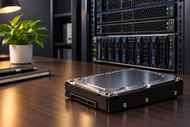
Server storage is an essential part of keeping business systems stable, responsive and ready to manage increasing volumes of data. The Server Hard Drives used in these systems can affect application performance, backup processes, available capacity and complete infrastructure costs. When choosing a Server Hard Disk businesses should look beyond storage capacity and consider factors such as workload, compatibility, performance and future expansion. As HDDs continue to change along with SSD and NVMe technologies you can also understand these differences can help IT teams make practical storage decisions in 2026.
Understand Your Server Storage Requirements
Identify Your Business Workload
Start with how the server will actually be used. File servers, web hosting, databases, virtualization and backup systems place different demands on storage. A backup server may prioritize high capacity and sequential writes, while a database server may need faster response times and stronger random I/O performance. Starting with the workload makes it easier to choose a Server Storage Drive that fits the system.
Estimate Current Storage Needs
Check how much storage your business now uses and what is consuming it. Include databases, applications, documents, backups, logs and other business data. It is also wise to leave some free capacity rather than choosing a drive that will be closely full as soon as it is installed.
Plan for Future Data Growth
Business data tends to grow over time. Review your previous storage growth and estimate what you may need over the next three to five years. Planning for that growth early can make future expansion easier and reduce the disruption of frequent storage upgrades.
Balance Performance and Budget
The most expensive drive is not automatically the best choice. For backups, archives and large files a high capacity HDD can provide useful storage at a lower cost per terabyte. Workloads that require low latency and frequent random access may justify the higher cost of SSD or NVMe storage.
If you’re comparing storage options in more detail, our Ultimate Guide to Internal Hard Drives for Performance and Data Storage in 2026 can help you understand capacity, performance and compatibility before choosing a drive.
Choose the Right Type of Server Hard Drive
SATA Server Hard Drives
SATA drives are a practical choice when capacity and cost are the main priorities. They can work well for file storage, backups, archives and less demanding server workload. Before purchasing confirm that the server, controller and backplane support the exact SATA drive and capacity you plan to use.
SAS Server Hard Drives
SAS drives are designed for enterprise environments where reliable process and robust storage connectivity matter. They are usually used in servers and storage systems built around SAS infrastructure. For demanding business workloads, SAS can provide a more appropriate enterprise storage option than standard desktop oriented drives.
Enterprise-Class HDDs
Enterprise HDDs are designed for workloads that can run continuously and handle large amounts of data. One important specification is the workload rating. Buyers should compare the manufacturer's rated workload with their expected read and write activity rather than assuming every enterprise drive is suitable for every environment.
Server Storage Capacity Recommendations by Use Case
Small Business & Home Servers
1TB-4TB for personal or home NAS use and 4TB-8TB for small business file sharing and backups.
Web Hosting Servers
500GB-2TB for small websites and blogs, 2TB-8TB for several websites and eCommerce
Database Servers
1TB-4TB for small and mid size databases, 8TB-16TB+ for enterprise databases
Backup Servers
8TB-16TB for business backups, 16TB-32TB+ for larger enterprise environments
AI, Analytics & Big Data
16TB-32TB for smaller deployments, 64TB+ for large scale data environments
These are practical starting points rather than fixed requirements. Actual capacity depends on data volume, retention policies, redundancy, applications and expected growth.
Essential Performance Factors for Server Hard Drives
RPM and Drive Speed
RPM affects how fast an HDD's platters rotate and can influence access performance. Higher RPM drives can provide better responsiveness although they may also use more power and produce more heat. The right choice depends on the workload rather than RPM alone.
Cache Memory
Drive cache can temporarily hold frequently accessed data and help with certain workloads. However, cache size should not be treated as the main performance indicator. Interface, RPM, workload pattern, controller configuration and RAID design can all affect real world results.
Workload Ratings
Workload ratings are mostly important for business environments where drives work continuously. They indicate the amount of data a drive is designed to handle over a defined period. Matching the workload rating to actual usage helps ensure the drive is suited to the demands of the environment.
Reliability and Endurance
Check the manufacturer's workload specifications, error rate information, warranty and intended application. Enterprise drives are built for demanding workloads but even a reliable Server Hard Drive still needs redundancy and a proper backup strategy.
Power Efficiency
Power consumption becomes more significant as the number of drives increases. Well organized storage can help reduce electricity and cooling requirements particularly in larger server rooms and data centers.
Maximizing Server Hard Drive Performance and Reliability
Avoid Common Buying Mistakes
Do not choose a drive based only on price or capacity. A desktop HDD may be inexpensive but it may not be designed for an endless active server environment. Always match the drive's specification with the actual workload.
Check Compatibility Before Purchase
Confirm the server model, form factor, interface, controller, backplane, firmware requirements and supported capacities. Modern servers can support combinations of SAS, SATA, SSD and NVMe depending on the specific configuration so compatibility should be checked before ordering.
Plan for Future Storage Growth
Consider available drive bays RAID expansion and the maximum capacity supported by your storage architecture So, planning your expansion before you need it can make future upgrades much easier.
Monitor Drive Health Regularly
Use server management and storage monitoring tools to watch temperatures, errors, performance and drive health. Early warnings can give IT teams time to replace a failing drive before it becomes a larger availability problem.
Maintain Proper Cooling
Good airflow is important when many HDDs work continuously. Keep drive bays and cooling paths clear and maintain the server recommended working conditions to help manage heat and protect storage reliability.
Keep Firmware Updated
Follow the manufacturer's guidance for firmware updates on drives, controllers and related server components. Keeping supported firmware current can help maintain compatibility and working stability.
Modern Trends in Server Storage
AI-Driven Storage Management
AI workload is increasing storage demand across many organizations. As datasets become larger, automated monitoring, capacity planning and workload analysis can help IT teams manage storage more professionally.
High-Capacity Enterprise Drives
High capacity HDDs remain an important part of large scale storage. In March 2026, Seagate announced its Mozaic 4+ platform was qualified and in production with two hyperscale cloud providers supporting capacities up to 44TB. The platform uses HAMR technology to increase areal density showing how HDDs continue to evolve for AI scale and enterprise storage environments.
Hybrid Storage Solutions
Businesses gradually combine HDDs, SSDs and NVMe rather than trusting on one storage type for every workload. HDDs can handle large datasets, backups and archives while SSDs and NVMe can support applications where fast access and low latency are critical.
Energy-Efficient Storage Technologies
Storage density is becoming increasingly important as data volumes grow. Higher capacity drives can allow organizations to store more data using fewer physical drives which can help reduce space, power and cooling requirements.
Predictive Drive Monitoring
Storage monitoring is moving toward more active maintenance. Tracking temperature, errors, workload behavior and drive health can help IT teams identify possible issues earlier and plan replacements before unexpected failures occur.
Final Thoughts
Choosing the right Server Disk Drive starts with understanding the workload rather than focusing on capacity without help. Consider performance, interface, reliability, compatibility, power requirement and future growth before making a purchase. SATA can be a practical option for cost effective capacity, while SAS and enterprise HDDs can better suit demanding business environments. For latency sensitive workloads SSD or NVMe may be the better choice. A good storage setup should meet today’s requirements while leaving enough capacity for future growth.
Frequently Asked Questions
A: Consider your workload required capacity, performance, server compatibility, workload rating, reliability, budget and expected future growth.
A: SATA is normally used for cost effective storage, while SAS is designed for enterprise server environments and NVMe uses PCIe to deliver significantly lower latency and higher performance.
A: For file sharing backups and general business storage a reliable enterprise SATA HDD can be a practical option. The best fit will depend on the server’s workload, available capacity, compatibility and budget.
A: There is no single answer. Small servers may need a few terabytes, while database, backup AI and analytics environments can require tens or hundreds of terabytes.
A: RPM, cache, interface, workload pattern, I/O activity, RAID configuration, controller and thermal condition can all affect HDD performance.
A: SSDs generally provide lower latency and faster I/O, while HDDs offer more capacity at a lower cost per terabyte. Many businesses use both to balance performance and storage cost.
A: There is no universal lifetime. Workload, temperature, vibration, usage patterns, drive design and working condition can all affect service life. Monitoring drive health is more useful than relying on a fixed replacement age.
A: Drives should generally be replaced based on health indicators, errors, workload, warranty consideration and the organization maintenance policy rather than a random replacement date. Critical systems should also maintain redundancy and current backups.