

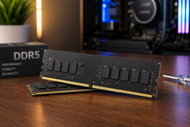
Picking the right Desktop Memory (RAM) is the difference between a PC that feels quick and one that stutters every time you open a few tabs.
RAM is your computer's short-term working space. It holds whatever you're actively doing right now, so your processor can grab that data fast. It is not where your files live long-term. That job belongs to your storage drive.
Get the choice wrong, and you feel it every day. Too little Memory and your system leans on your slow drive to keep up, which brings lag and freezing. Buy the wrong type, and it won't even fit your motherboard. Overspend on speed you'll never use, and that money could have gone to a better graphics card.
2026 makes this decision matter even more. RAM prices climbed hard through the year because AI data centres are eating up a huge share of the world's memory production.
A 32GB DDR5 kit that sold for roughly $80 to $100 in mid-2025 shot past $400 by early 2026. So buying smart, not big, is the name of the game right now.
RAM: The Fundamentals Before You Buy
What Does Desktop Memory (RAM) Actually Do?
Think of RAM as your desk. The bigger the desk, the more papers you can spread out and work on at once. Your storage drive is the filing cabinet in the corner. It holds everything, but you have to walk over and pull files out one at a time.
When you open a program, your PC loads it from the drive into RAM, so the processor can reach it in an instant.
Every open app, every browser tab, and the background bits of Windows all sit in Memory while they're running. More RAM means more of this can happen at the same time without your PC slowing to a crawl.
Here's the part people mix up: RAM and storage are not the same thing. A drive keeps your files forever, even when the power is off. RAM clears itself completely every time you shut down. That's why you save your work. Anything sitting only in Memory is gone the moment the machine powers off.
DIMM RAM vs. Other Memory Formats
Desktop Memory comes as a DIMM. That's the long stick you slot straight into your motherboard. Every desktop kit you buy uses this format, so the physical shape is one less thing to worry about once you know what to look for.
Laptops use a shorter stick called SO-DIMM. It does the same job but won't fit a desktop board, and a desktop DIMM won't fit a laptop. The two are not interchangeable.
This matters because online listings sometimes bury the format in the fine print. Buy a laptop SO-DIMM by accident for your desktop build, and you're stuck with a return.
Builders and procurement teams both run into this. When you're ordering a batch of memory for office machines or picking sticks for a custom rig, always confirm the listing says DIMM before checkout. It's a two-second check that saves a headache.
DDR3 RAM vs. DDR4 RAM vs. DDR5 RAM: Spec Comparison
RAM comes in generations, and each one moved the bar for bandwidth and top speed. Bandwidth is how much data moves in and out per second. Newer generations move more.
The catch is that generations don't mix. Your motherboard is built for one type only. A DDR5 stick has its notch in a different spot than DDR4, so it physically won't seat in the wrong slot. There's no adapter that bridges them either. The type your board supports decides what you can buy, full stop.
DDR5 RAM is the standard for any new build in 2026. Both AMD's current AM5 platform and Intel's newest chips need it, with no DDR4 option on either. So if you're buying a fresh system this year, you're buying DDR5 by default.
It starts at 4800 MT/s and doubles the base bandwidth of DDR4, which helps most in heavier productivity work.
DDR4 RAM still runs a huge number of machines and remains a fair pick if you're upgrading an older board that already takes it. Replacing perfectly good DDR4 just to chase the newer standard rarely makes sense. It only becomes the wrong choice when you're building from scratch.
DDR3 RAM is legacy now. You'll only touch it if you're keeping a very old system alive. It's worth knowing the name exists, but it isn't something to buy for any current build.
Here's a quick side-by-side of the two generations that actually matter for buyers today:
|
Feature |
DDR4 RAM |
DDR5 RAM |
|
Base speed |
3200 MT/s |
4800 MT/s |
|
Standard voltage |
1.2V |
1.1V |
|
Best for |
Upgrading older boards |
All new 2026 builds |
|
Platform support |
Older AMD and Intel boards |
Current AMD and Intel only |
Matching Desktop Memory (RAM) to Your Use Case
Everyday and Office Computing
For browsing, email, documents, and video calls, you don't need much. These tasks are light, and even a modest machine handles them.
8GB is the floor. It works, but modern browsers are hungry, and a dozen open tabs plus a video call can push it. 16GB is the comfortable spot for everyday and office use.
It gives you room to keep plenty open without the system bogging down. If you're speccing office PCs that people use all day, 16GB is the sensible baseline in 2026.
Gaming Desktop Memory Needs
For gaming, 16GB is the baseline that runs today's titles fine. It's the minimum you'd want a modern gaming rig to have.
32GB is the real sweet spot for serious and competitive players, especially if you stream or keep Discord, a browser, and other apps running while you play.
A matched 32GB kit is the standard for gaming in 2026 and handles every current title with room to spare for background apps. Going above 32GB brings little benefit for most games.
The extra capacity mostly sits unused. Game engines do keep getting more asset-heavy over time, so 32GB gives you headroom for the next few years, not just today.
Creative, Technical, and Professional Workloads
Heavy work needs heavy Memory. Video editing, rendering, 3D, CAD, and pro software all lean on RAM hard, and running short here slows your whole workflow.
For these jobs, 32GB is the starting point, and 64GB or more is common. If you're editing high-resolution video, running virtual machines, or keeping large local AI models loaded alongside other tools, that upper tier pays off.
Workstation-class users and B2B power setups often sit at 64GB and beyond because their software genuinely fills it. This is the one area where buying more capacity is money well spent.
PC Memory Speed vs Capacity: Which Should You Prioritize?
Two numbers describe how fast RAM is: frequency and CAS latency. Both look intimidating, and neither needs to be.
Frequency is measured in MHz or MT/s. Higher means more data moves per second. Think of it as how wide the pipe is.
CAS latency is the CL number, like CL30 or CL16. It's how many clock cycles the RAM waits before it starts handing over data. Lower is quicker, but here's the twist that confuses everyone: a higher CL number isn't automatically slower.
CL counts cycles, not real time, and faster RAM runs shorter cycles. A DDR5-6000 CL30 kit and a DDR4-3200 CL16 kit land at nearly the same real-world response time of around 10 nanoseconds, even though the CL numbers look far apart.
For DDR4, the common reference points sit in the 3200 to 3600 MHz range, usually paired with CL16. For DDR5, kits start at 4800 MHz and the value sweet spot in 2026 is DDR5-6000 with CL30. Above 6400 MHz, the gains shrink fast, and the price climbs, so most builders stop right at that 6000 mark.
So which wins, speed or capacity? Capacity wins first, almost always. Running out of RAM hurts far more than running slightly slower RAM.
Get the right amount for your work before you chase megahertz. Once your capacity is set, then a solid speed like DDR5-6000 CL30 is the smart pick. Speed only becomes the deciding factor once you already have enough Memory to cover your workload.
Common Desktop Memory Errors to Avoid
A few slip-ups catch buyers again and again. Knowing them ahead of time saves you money and returns.
Grabbing a SO-DIMM instead of a DIMM is the classic online mistake. The laptop stick looks similar in a thumbnail and won't fit your desktop board. Read the format before you buy.
Ignoring your motherboard's limits is another. Every board has a maximum capacity and a set number of slots. Buy more than it supports, or more sticks than it has slots for, and some of that memory does nothing.
Assuming a high MHz kit just works is a trap too. Your board and processor have to support that speed, or the RAM drops to a slower default. Check the board's spec sheet first.
Mixing mismatched modules causes instability. Sticks with different speeds, timings, or capacities can fight each other and lead to crashes. Buy a matched kit rather than pairing random sticks.
Overlooking heatsink height trips up small-case and big-cooler builds. Tall RAM heatsinks can bump into a large CPU cooler. Measure your clearance before you commit.
Desktop Memory (RAM) Buying Checklist
Run through these before you check out:
- Match the generation to your board. Confirm whether your motherboard takes DDR4 or DDR5. This is non-negotiable, since the two don't physically fit each other's slots.
- Pick a capacity tier for your real workload. 16GB for office and light gaming, 32GB for serious gaming, and 32GB to 64GB and up for creative and professional work.
- Check the frequency your board supports. Look at the motherboard spec sheet so you don't pay for speed it can't use.
- Choose a dual-channel kit over a single stick. Two matched sticks give you dual-channel bandwidth, which beats one large stick of the same total size.
- Verify physical clearance. Confirm the RAM's heatsink height fits under your cooler and inside your case.
Conclusion
Choosing Desktop Memory comes down to four decisions: the generation your board needs, the capacity your work demands, the speed that fits your platform, and whether you run a single stick or a proper dual-channel kit. Nail those, and you've made a good buy.
The core message is simple. Buy for what you actually do, not for the biggest number on the box. In a year where memory prices are high, that intention saves you real money. Match the type, get the right amount, pick a sensible speed, and skip the extras you won't use.
At CTS Point, we stock Desktop RAM across DDR3, DDR4, and DDR5, so whether you're keeping an older machine running or building fresh for 2026, you'll find the right fit. Browse our RAM catalogue to compare options, or reach out to us for help with sourcing and procurement if you're buying in volume.
If you want the bigger picture on memory types and safe installation, read our Ultimate Memory Guide 2026: Memory Type and Installation Precautions. It builds on everything here and walks you through fitting your new RAM the right way, so this article and that one together cover you from choosing the kit to getting it running.
Frequently Asked Questions
A: Dual-channel RAM means running two matched sticks together so your system can talk to both at once, roughly doubling the data path compared to a single stick. That's why a 2x16GB kit beats one 32GB stick of the same speed. Nearly all desktop boards support it, so buying memory in a matched pair is the standard move.
A: The extra RAM simply sits idle. It won't slow your PC down, but it won't speed it up either once your workload is already covered. Spending on capacity you never touch is money that could have gone toward a faster drive or a better graphics card, so it's better to match the amount to your real use.
A: They matter, but less than people think. Timings like CAS latency affect how quickly RAM responds, and a lower CL at the same speed is genuinely better. For most users, picking a well-reviewed kit at a solid speed like DDR5-6000 CL30 covers this without any need to obsess over the numbers.
A: Not always. Higher MHz helps in memory-heavy tasks, but the gains shrink fast above the sweet spot, and a kit with tighter timings can beat a faster kit with looser ones. Your board and processor also have to support the speed, or the RAM runs slower than advertised. Beyond DDR5-6000, most people won't notice the difference.
A: XMP is a one-click profile that sets your RAM to its rated speed. Out of the box, memory often runs at a slower default until you turn XMP on in your BIOS. AMD's version is called EXPO, and most quality kits support both. Enabling it is the single most common fix for a new build that feels slower than expected, so yes, switch it on.
A: CTS Point carries Desktop Memory across DDR3, DDR4, and DDR5, so you can find the right generation for any board, old or new. If you're unsure what fits or you're buying for several machines at once, our team helps you match capacity, speed, and format to your needs, whether you're a single builder or handling procurement for a business.