

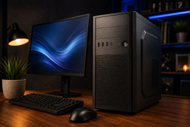
Buying a desktop computer gets confusing fast. One machine sells for a few hundred dollars, another looks nearly identical and costs four times more, and the spec sheet reads like code.
The short answer is simple: pick a desktop PC by matching four things to the work you actually do, which are the processor, the memory, the storage, and the graphics. The rest is comfort, size, and taste.
Desktops never went away. They still give you more speed per dollar than a laptop; they run cooler when you push them for hours, and you can open the case years later and swap a part instead of replacing the whole machine.
Understanding Modern Desktop Computers
A desktop computer is a machine built to sit in one place and run on wall power, with the screen, keyboard, and mouse either separate or built into one body.
Inside you get a processor (CPU), memory (RAM), storage, a motherboard that ties it all together, a power supply, and a cooling setup. Many also carry a separate graphics card.
The job of a desktop hasn't changed much: run your programs, hold your files, and push a picture to one or more screens. What has changed is how much work these machines take on. A single desktop PC now handles video calls, spreadsheets, photo editing, video timelines, coding, games, and small AI models running right on the device.
So why do people still buy them when laptops are everywhere?
- More speed for the money: A desktop chip and a laptop chip with the same name rarely perform the same. The desktop version draws more power and runs faster.
- It holds its speed: Laptops slow themselves down when they get hot. A tower has room for bigger fans and bigger heatsinks, so a long render or a long gaming session stays fast from start to finish.
- You can fix it: RAM, storage, graphics cards, fans, and power supplies are replaceable parts on most towers.
- More ports: Extra monitors, printers, drives, and card readers all plug in without a hub.
- It lasts: A well-chosen desktop stays useful for six to eight years, and a mid-life RAM or SSD upgrade stretches that further.
Common Types of Desktop Computers
Four shapes cover almost everything on the market. They run the same software. What separates them is size, cooling, and how much you can change later.
|
Desktop Type |
Common Use |
Key Benefits |
|
Desktop Computer Tower |
Home, office, gaming, creative work |
Most speed per dollar, best cooling, easiest to upgrade and repair |
|
Mini Desktop Computer |
Reception desks, classrooms, home offices, media use |
Tiny footprint, low power draw, mounts behind a monitor |
|
All-in-One Desktop Computer |
Family rooms, front desks, tidy workspaces |
One cable, no separate tower, screen included |
|
Gaming Desktop Computer |
Gaming, video editing, 3D, local AI work |
Dedicated graphics card, stronger cooling, high refresh output |
-
Desktop Computer Tower
A desktop computer tower is the classic box that sits under or beside your desk. It takes a full-size motherboard, a full-length graphics card, several storage drives, and a proper power supply. Because there is space inside, the fans spin slower, and the machine stays quieter under load.
Towers come in three rough sizes based on the motherboard: full ATX for maximum slots, microATX for a balance of size and expansion, and mini-ITX for compact builds with one expansion slot. If you want a machine you can keep improving, this is the shape to buy.
-
Mini Desktop Computer
A mini desktop computer squeezes a full system into a body of roughly one to four litres, small enough to sit in your palm or bolt to the back of a monitor with a VESA bracket.
Most use mobile-grade processors and draw very little power, which keeps electricity costs and noise down.
The trade is expansion. You get one or two memory slots, one or two M.2 storage slots, and no room for a graphics card. For email, browsing, accounting software, point of sale counters, classrooms, and digital signage, that is plenty.
-
All-in-One Desktop Computer
An all-in-one desktop computer builds the whole system into the monitor housing, so you plug in one power cable, and you're done. Screens run from around 24 to 32 inches, and touch versions are common in shops and shared family spaces.
Two things to weigh before buying one:
- First, the parts inside come from the laptop side of the industry, so the same price buys less speed than a tower.
- Second, upgrades are limited to memory and storage on most models, and if the screen fails, the computer goes to the repair shop with it.
Gaming Desktop Computer
A gaming desktop computer is a tower with three upgrades: a dedicated graphics card with its own video memory, a bigger power supply, and cooling built for long, hot sessions.
That combination is also what video editors, 3D artists, architects, and people running AI models locally need, so these machines earn their keep well beyond games.
Look at the graphics card first, then the power supply. A strong card starved by a weak or low-quality power supply causes crashes that look like software problems.
Key Desktop Computer Features
|
Feature |
Purpose |
|
Performance |
Sets how fast programs open and how many you can run at once |
|
Storage Capacity |
Decides how much you can keep on the machine and how quickly it loads |
|
Graphics Capability |
Drives games, video work, 3D, and multiple monitors |
|
Connectivity Options |
Determines what you can plug in and how fast your network runs |
|
Upgrade Options |
Controls how long the desktop stays useful before replacement |
-
Performance
Performance comes from the processor and memory working together. Core count matters for jobs that split across cores, such as video exports, code builds, and heavy spreadsheets. Clock speed matters for jobs that run on one core, such as most games and older business software.
Memory is where buyers underspend. Treat 16GB as the floor for a new machine, 32GB if you edit video, run virtual machines, or keep thirty browser tabs open next to design software.
Fit two sticks rather than one, because two sticks run in dual-channel mode and give the system noticeably more bandwidth than a single stick of the same total size.
Newer processors also carry an NPU, a small chip built for AI tasks like background blur, live captions, and photo cleanup, which takes that load off the main processor.
-
Storage Capacity
Storage decides both space and speed. An NVMe SSD plugged into an M.2 slot reads several thousand megabytes per second. A SATA SSD sits nearer 550MB/s.
A spinning hard drive is slower again, though it is still the cheapest way to store large archives.
Buy an NVMe SSD as the main drive, 512GB at minimum and 1TB if you install games or work with video.
Windows and a normal set of office programs eat 60 to 80GB before you save a single file, and modern games run 60 to 150GB each. Add a hard drive later for backups and bulk files if you need the room.
-
Graphics Capability
Integrated graphics live inside the processor and share system memory. They are fine for office work, video calls, 4K video playback, and light photo editing. Modern integrated chips even manage older games at modest settings.
A dedicated graphics card carries its own video memory (VRAM) and does the work on its own. Around 8GB of VRAM is the sensible entry point for 1080p gaming and photo work.
Step up to 12GB or 16GB for 1440p and 4K gaming, long video timelines, 3D rendering, and running AI models on the machine.
-
Connectivity Options
Count your ports before you buy, not after. Check how many USB-A and USB-C ports the machine has, whether any of them support 40Gbps speeds for fast external drives, and how many are on the front where you'll reach them.
Look at the display outputs too. HDMI 2.1 and DisplayPort both carry high refresh rates and 4K, and the number of outputs sets how many monitors you can run.
On the network side, 2.5G Ethernet, Wi-Fi 6E or Wi-Fi 7, and Bluetooth 5.3 or newer are worth having on a machine you plan to keep for years.
-
Upgrade Options
The upgrade path is the difference between a computer you keep and a computer you replace. Before paying, check five things:
- free memory slots
- a spare M.2 slot
- room for extra drives
- spare wattage in the power supply
- whether the motherboard and case follow standard sizes rather than a custom shape only the manufacturer sells parts for.
Towers score highest here. All-in-ones and mini desktops score lowest, which is a fair trade when you want the space back.
Choosing the Right Desktop Computer for Your Needs
Start with the work, not the price tag. Write down the three programs you use most and the heaviest thing you ask a computer to do in a normal week. That single list settles most of the decision.
- Home and family use
Browsing, streaming, school work, video calls, and light photo editing run comfortably on a modern processor with integrated graphics, 16GB of RAM, and a 512GB SSD. An all-in-one desktop computer or a mini desktop computer suits shared rooms where cable clutter bothers everyone.
- Office and business use
Buy for reliability and support, not raw speed. A small tower or mini desktop with 16GB of RAM, a 512GB SSD, dual monitor outputs, and a three-year on-site warranty keeps staff working. Standard sizes matter here as well, since fleet repairs get expensive when every model needs its own spare parts.
- Gaming
The graphics card sets your frame rate, so give it the biggest share of the budget, then pair it with a processor that won't hold it back, 16GB to 32GB of RAM, and a 1TB NVMe drive. Match the card to the monitor you own or plan to buy.
- Creative and technical work
Video, 3D, CAD, and data work want cores, memory, and VRAM. 32GB of RAM, a card with 12GB or more of VRAM, and separate drives for the system and project files make daily work smoother than any single headline spec.
If you want the wider picture behind these choices, The Rise of PCs & Servers in the AI world: A 2026 Technology Guide walks through how AI workloads are reshaping both personal machines and the servers behind them.
Avoid These Desktop Buying Mistakes
- Chasing the processor and ignoring everything else
A top-tier CPU with 8GB of RAM and a slow drive feels sluggish. Balance beats a single strong number.
- Buying a single memory stick
One 16GB stick runs slower than two 8GB sticks in most systems. Check the configuration on the spec sheet.
- Paying for graphics you'll never use
If you don't game, edit video, or run 3D software, that money buys more memory and storage instead.
- Skipping the power supply line
Cheap, underrated power supplies cause random shutdowns and can take other parts with them. Leave headroom above what your parts draw.
- Assuming you can upgrade it later
Many all-in-one and mini models solder the memory in place. Confirm before you buy, not after.
- Forgetting the monitor
A fast gaming desktop computer wired to a 60Hz screen throws away most of what you paid for.
- Ignoring the desk
Measure the space first. A large tower on a small desk becomes a daily annoyance.
Future Trends in Desktop Computers
AI moving on-device is the biggest shift. Processors now ship with NPUs that run image cleanup, live transcription, translation, and search locally, which keeps private files off the internet and cuts the wait for a server to answer.
Video memory is climbing because of it. Local AI models and 4K video work both live in VRAM, so mid-range cards are carrying capacities that used to belong to professional hardware.
Storage keeps getting faster with newer PCIe generations, which shortens load times for games and large project files. Memory is moving toward higher-speed DDR5 kits and newer module designs built for compact machines.
Small form factor builds are the other clear direction. Better cooling and lower power components mean a compact case can now hold a full graphics card, so the gap between a mini desktop computer and a full tower keeps narrowing.
Repairability and energy efficiency rules in several markets are also pushing makers toward standard parts and easier access panels, which is good news for anyone who plans to keep a machine for years.
Conclusion
A good desktop purchase comes down to matching the machine to the work. Decide the type first, since a tower, mini, all-in-one, and gaming desktop each solve a different problem around space and expansion.
Then set your processor, memory, storage, and graphics against the heaviest task you run in a normal week, and check the ports and upgrade slots before you pay.
Give memory and storage the attention they deserve, leave room in the power supply, and confirm what can be changed later. Do that, and the desktop computer you buy this year will still be doing its job long after the spec sheet stops looking new.
Frequently Asked Questions
A: The processor sets the ceiling for everything else, so it matters most. In practice, memory decides how the machine feels day to day. A mid-range CPU with 16GB of RAM and an NVMe SSD feels faster than a high-end CPU paired with 8GB of RAM and a slow drive.
A: Processors with built-in NPUs for on-device AI, graphics cards with more video memory, faster PCIe storage, higher-speed DDR5 memory, Wi-Fi 7 networking, and compact cases that now fit full-size graphics cards.
A: You get more speed per dollar than a laptop, cooling that holds performance during long tasks, more ports, a screen of your own choosing, and parts you can replace or upgrade instead of buying a whole new machine.
A: They aren't portable; they need a power outlet and desk space, and the screen, keyboard, and mouse are extra purchases on tower and mini models. All-in-one and mini desktops also limit what you can upgrade later.
A: Yes. Desktops remain the standard choice for offices, gaming, video and 3D work, engineering software, and any job that runs for hours at full load, because they hold their speed and cost less for the same performance.
A: Four main types: the desktop computer tower, the mini desktop computer, the all-in-one desktop computer, and the gaming desktop computer. They run the same software and differ in size, cooling, and how much you can upgrade.
A: A small tower or mini desktop with a current mid-range processor, 16GB of RAM, a 512GB NVMe SSD, dual monitor outputs, and a multi-year on-site warranty. Standard parts and reliable support matter more than peak speed when you're buying for a team.