

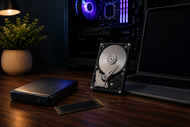
A laptop may hold years of work, photos, records, and creative projects. A failed drive, theft, file-system damage, or ransomware can block access at once. A Laptop Hard Drive needs tested backups.
Storage needs keep growing. 4K video, game libraries, design files, business records, and AI-created media consume space fast. People need room for daily work plus separate copies that survive a device problem.
Laptop HDDs still meet that need through low-cost capacity. SSDs bring speed, while external drives suit backups and offline storage.
Understanding Laptop Hard Drives and Modern Storage Needs
A Laptop Hard Drive stores the operating system, programs, settings, and personal files after shutdown. A traditional Laptop Hard Disk uses spinning magnetic platters and a moving read-write head.
An SSD stores data in flash memory and has no spinning parts. People use “hard drive” for both, though the two technologies behave differently.
The file system records file locations, names, folders, dates, permissions, and free space. Windows commonly uses NTFS, while modern Macs use APFS. This structure helps the operating system find data on the Laptop Disk Drive.
Portable Laptop Storage adds a layer that the internal drive cannot provide. An external drive can hold backups, archives, media, or shared files.
It also prevents the drive from filling completely, which can leave too little room for updates and temporary files.
Types of Laptop Hard Drives for Data Storage
Traditional Laptop HDD models commonly use a 2.5-inch case and SATA connection. They suit large photo, video, document, and archive collections where capacity matters more than speed. Their moving parts make them sensitive to drops, vibration, and sudden movement while running.
A SATA SSD can fit many of the same 2.5-inch bays and make an older laptop feel much quicker. NVMe SSDs use an M.2 card and PCIe connection.
Buyers must check the laptop manual for the right connector, card length, key type, and supported standard.
A hybrid setup uses a fast SSD for the operating system and active programs, then stores large files on a higher-capacity HDD. This arrangement needs two internal slots, though an external HDD can fill the second role.
Capacity does not confirm compatibility. Some high-capacity 2.5-inch HDDs use a thicker case than slim laptops accept. Check drive height, interface, power needs, and the laptop maker’s limits before buying.
Choosing the Right Laptop Hard Drive for Storage and Backup
Count the data you use now, then allow room for growth and backup history. A person with 400 GB of active files should not choose a 500 GB Laptop Backup Drive. Backup software needs room for changed files, deleted items, and older versions.
A drive with twice the used storage gives many home users practical working space.
Match the device to the task. An SSD suits the operating system, active editing, daily applications, and frequent travel.
An HDD suits archives, large media sets, and periodic backups. Long-term protection relies more on duplicate copies, safe handling, checks, and replacement planning than raw transfer speed.
Laptop Hard Drives for secure portable data storage should support encryption. Store the recovery key away from the drive. Encryption protects files after theft or loss, but it does not create a second copy.
Backup Strategies for Laptop Hard Drives
A backup must sit on a separate device or service. Another folder on the same Laptop Disk Storage device will disappear if that device fails.
Syncing also differs from backup because a sync service may copy deletions or damaged files across connected devices.
The 3-2-1 method provides a sound base: keep three copies, use two kinds of media, and store one copy away from the laptop’s location. A working copy, an external Laptop Backup Drive, and an encrypted cloud copy can meet this plan.
Disconnect one local backup outside backup time to reduce exposure to ransomware and electrical faults.
Choose timing by asking how much work you can afford to lose. Daily work may need hourly or daily copies. Less active home files may need a daily file copy and weekly full backup. Automation reduces missed runs, but users still need to review warnings and failed-job logs.
Test restores. Recover a few folders to another location, open the files, and check their dates and versions.
A completed backup job means little if the files will not restore.
Laptop Hard Drives for Long-Term Data Storage and Protection
Laptop Hard Drives for long-term data storage and protection need more than a one-time copy. No HDD or SSD should hold the only archive.
Connect stored drives on a planned schedule, check their health, open sample files, and move aging archives to newer media before errors spread.
Organize folders by subject, client, project, or year. Use a fixed date format such as 2026-08-03 and avoid names like “final-final-new.” Keep an index that explains the folder structure, required software, encryption details, and ownership. Clear organization cuts recovery time and helps people locate the right version.
Laptop Hard Drives for disaster recovery and data protection may need system images, business records, installers, license details, and recovery keys. Write the order in which you would restore them. Current customer records or payroll may need recovery before old downloads.
Our Ultimate Guide to Internal Hard Drives for Performance and Data Storage in 2026 covers internal drive formats, interfaces, speed factors, capacity choices, and system compatibility, helping readers compare the working drive inside a computer with separate backup storage.
Common Laptop Hard Drive Problems and Data Risks
Slow opening, repeated freezes, missing folders, file errors, and failed updates may point to storage trouble, though software faults can produce similar signs.
A mechanical Laptop HDD may click, grind, or spin up and stop. Shut the laptop down when new mechanical noises appear. Repeated restarts can place more stress on damaged parts.
Heat, impact, liquid, unstable power, worn cables, and damaged connectors can interrupt reads and writes. Forced shutdowns and unsafe removal during a transfer can corrupt files. Keep a running HDD still, and eject external storage through the operating system before unplugging it.
A drive may fail without warning. Treat every health alert as a reason to copy data, not as proof that a quiet drive remains safe.
Ways to Improve Laptop Hard Drive Reliability
Keep free space available, install system updates, scan for file-system errors, and remove unneeded files. Do not defragment an SSD. Modern systems use TRIM for SSD care, while HDDs may gain from scheduled defragmentation.
SMART data can report temperature, reallocated sectors, read errors, and other records. Check it monthly and before a major migration. A clean report cannot promise future health, so keep backing up.
Use padded cases, secure cables, and dry storage away from heat. Place portable drives on a stable surface during transfers, then disconnect offline backups after each job.
Future of Laptop Hard Drives and Backup Technologies
Laptops in 2026 continue moving toward NVMe SSDs for main storage because users expect quick startup, thin designs, and better resistance to movement.
Laptop HDD technology still suits external backups, older systems, and lower-cost high-capacity storage.
Larger videos, local AI files, games, and business records will push users toward mixed storage plans. A fast internal SSD paired with an external HDD or SSD offers a balance.
Backup tools will add stronger version history, encryption, health alerts, deduplication, and recovery checks.
Hardware will change, but one rule will stay: one copy is never enough.
Conclusion
A reliable Laptop Hard Drive starts with the right capacity, speed, interface, and purpose. SSDs suit active work, while HDDs remain practical for large backups and archives. Neither type protects data alone.
Choose a schedule based on file changes, keep an offline or off-site copy, encrypt sensitive portable storage, and test restores.
These steps turn Laptop Hard Drives from single points of failure into parts of a workable recovery plan.
Frequently Asked Questions
A: Use the 3-2-1 method, schedule regular backups, disconnect one local copy after use, and test restored files.
A: They can hold archives, but no single drive offers permanent protection. Keep duplicate copies, check them, and refresh aging media.
A: Prevent drops and heat, monitor drive health, keep free space, use encryption, and maintain separate tested backups.
A: Yes. They can store file backups, system images, installers, and records when another copy stays off-site or offline.
A: Mechanical wear, heat, impact, electrical faults, damaged sectors, liquid, and controller problems can cause failure.
A: They keep the operating system, applications, settings, and personal files available after shutdown.
A: SSDs offer speed and shock resistance. HDDs offer more capacity for the price. Many users combine both.