

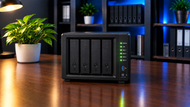
Files pile up faster than anyone plans for. Phone photos, client folders, invoices, camera footage, laptop backups. They sit scattered across devices that never talk to each other, and the moment one laptop dies, half of it disappears.
Network Attached Storage solves that problem in a direct way. A NAS is a box of drives that plugs into your router or switch and shares those drives with every device on your network.
Everyone reads and writes to one place. Backups land in one place. Security gets managed in one place.
Understanding NAS Storage for Home and Business
A NAS server is a small computer built to do one job well: hold files and serve them over the network. It runs its own operating system, takes two or more drives, and stays powered on around the clock. You reach it as a mapped drive on your desktop, through a phone app, or through a browser tab.
That puts a network-attached storage device somewhere between a USB external drive and a full rack server. A USB drive connects to one machine and needs you to remember to plug it in.
A rack server costs far more and needs someone to look after it. NAS sits in the middle, which is why it shows up in living rooms and in server closets.
The requirements split apart quickly. Home users want capacity, quiet operation, and low power draw. A business NAS storage setup carries different weight: several people writing to the same folders at once, user accounts with real permissions, backup jobs running on a schedule, and downtime that costs money by the hour.
Home and Business NAS: What's the Difference?
Home NAS
A home NAS holds the stuff you'd hate to lose. Family photos going back fifteen years, a music library, ripped movies, tax documents, project files from a side business.
It also does the boring work nobody wants to do manually. Every laptop and phone in the house backs up to it automatically. Time Machine on Macs, File History on Windows, and mobile photo sync all point at the same box. Two drive bays are enough for most homes, and a quiet fan matters more than raw speed if the NAS lives near a bedroom.
Business NAS
A business NAS carries the shared drive that your team works from every day. Design files, contracts, accounting exports, project folders. Ten people opening the same folder at once puts pressure on the network and the processor in a way a home setup never sees.
Business NAS storage also holds backup copies of workstations, servers, and cloud accounts. Many small companies point their nightly backup jobs at a NAS, then copy those backups off-site or to cloud storage on a second schedule. Enterprise NAS units push this further with redundant power supplies, hot-swap bays, and support for virtual machine storage.
Key Factors to Consider When Choosing NAS Storage
Storage capacity: Add up what you already store, then double it. Data grows quietly, and refilling a full NAS is painful.
Number of drive bays: Bays decide your ceiling. A 2-bay unit maxes out fast. A 4-bay or 8-bay unit lets you start with two drives and add more later without replacing the whole box.
Network connectivity: A standard 1GbE port tops out near 110 MB/s in real transfers. That's fine for documents and backups, slow for 4K video editing. 2.5GbE roughly doubles it, and 10GbE clears 1,000 MB/s if your switch and cables can carry it.
Processor and RAM: A dual-core chip with 2GB to 4GB of RAM handles file sharing and backups. Add camera recording, containers, snapshots, or virtual machines, and you'll want a quad-core processor with 8GB or more.
Choosing NAS Storage Capacity for Different Needs
Home Users
- 256GB to 512GB: documents, spreadsheets, and light file storage for one or two people.
- 1TB to 2TB: personal files, a photo library, and automatic backups from a laptop and a phone.
- 4TB to 8TB: large media libraries, video collections, and several users sharing the same box.
Small Businesses
- 2TB to 4TB: shared documents, contracts, and day-to-day business files for a small team.
- 8TB to 16TB: active collaboration plus scheduled backups of every workstation.
- 16TB to 32TB: growing archives, longer retention, and larger file repositories.
Larger Businesses
- 16TB to 32TB: department-level file storage and business applications.
- 32TB to 64TB: large shared storage pools with full backup copies held on site.
- 64TB and above: high-capacity storage that keeps room for years of data growth.
Remember that raw capacity and usable capacity differ. Four 8TB drives in RAID 5 give you roughly 24TB of usable space, not 32TB, because one drive's worth goes to parity.
HDD vs SSD for NAS Storage
NAS HDDs
Hard drives still win on capacity per dollar. Models built for NAS use are rated for continuous operation, tolerate vibration from neighbouring drives, and carry a stated yearly workload rating, commonly 180TB per year on mainstream models and 550TB per year on enterprise ones. For bulk storage, media libraries, and backup targets, HDDs remain the sensible pick.
NAS SSDs
SSDs answer instantly. No spin-up delay, no head movement, and far better handling of many users hitting many small files at once. Databases, virtual machines, and shared project folders full of small assets all feel different on flash. The trade-off is price per terabyte, which is why all-flash NAS units stay smaller in capacity.
Hybrid HDD and SSD NAS
Most people land here. Fill the main bays with hard drives for capacity, then add one or two SSDs as a read or read-write cache. Frequently opened files get served from flash while everything else lives on spinning disks. Many NAS models include dedicated M.2 slots for this so you don't give up a drive bay.
If you're weighing NAS against other storage types before committing, our Storage Devices Guide 2026: Performance, Security & Scalability compares internal drives, SSDs, external storage, tape, and network storage side by side, and explains where each one earns its place in a wider storage plan.
Understanding RAID and Data Protection in NAS
RAID combines several drives into one storage pool and keeps your data available when a drive fails.
- RAID 1 writes the same data to two drives. One dies; the other carries on. You get half your raw capacity.
- RAID 5 spreads data across three or more drives with parity. You lose one drive's worth of space and survive one failure.
- RAID 6 holds two sets of parity across four or more drives. It survives two failures at once, which matters with large drives, because rebuilding a 16TB or 20TB array can take days and leaves you exposed the whole time.
- RAID 10 mirrors pairs of drives and stripes across them. Fast reads and writes, strong redundancy, half the usable capacity.
One point deserves its own line: RAID protects against drive failure, nothing else. It does not save you from ransomware, accidental deletion, fire, theft, or a corrupt file that syncs everywhere. Keep three copies of important data on two types of media with one copy off-site. RAID is part of that plan, never the whole plan.
NAS Storage for Home and Business Use Cases
File Sharing and Collaboration
One shared folder replaces email attachments and version confusion. Permissions decide who reads, who writes, and who deletes.
Automatic Data Backup
Workstations, phones, servers, and cloud accounts back up on a schedule. NAS backup software from the major vendors handles versioning, so you can pull a file back the way it looked last Tuesday.
Media and Content Storage
Photo libraries, video projects, and music collections sit in one NAS file storage pool that every screen in the house can reach.
Video Surveillance
A NAS records IP camera feeds without a separate recorder. Plan capacity carefully: one 4MP camera recording continuously with H.265 uses roughly 15GB to 25GB a day, so eight cameras with 30 days of retention need several terabytes on their own.
Virtualization and Business Applications
Business and enterprise NAS units serve iSCSI targets and NFS shares to hypervisors, hosting virtual machine disks. Many also run containers directly for small internal apps and databases.
How to Keep a NAS Secure and Backed Up
Start with accounts. Delete or rename the default admin account, give each person their own login, and set folder permissions by group rather than by individual.
Turn on two-factor authentication for every account that reaches the NAS from outside the office. Encrypt shared folders that hold financial records, personal data, or client files, so a stolen drive gives up nothing.
Install firmware and application updates promptly. Ransomware campaigns aimed at network-attached storage devices have repeatedly targeted known holes that were already patched.
Never forward NAS ports straight to the internet. Use the vendor's secure remote access service or a VPN back into your network. Put the NAS behind your firewall, disable services you don't use, and switch on snapshots so you can roll a folder back to a clean point in minutes.
How to Build a NAS Setup That Grows With Your Data
Look at how much your storage grew over the past two years and assume that pace continues. Buy a chassis with more bays than you need today, and leave at least two empty.
Fewer, larger drives beat many small ones. Four 12TB drives leave room to expand later; eight 3TB drives fill every bay on day one. Check whether the model supports an expansion unit, which lets you bolt on extra bays instead of migrating to a new NAS.
Watch the network too. Plenty of teams buy a fast NAS, then throttle it through an old 1GbE switch. A 2.5GbE or 10GbE switch removes that ceiling.
Common NAS Buying Mistakes to Avoid
Buying exactly what you need today: You'll be shopping again in a year.
Using the wrong drives: Desktop drives lack vibration handling for multi-bay use, and drive-managed SMR drives slow RAID rebuilds badly. Check the vendor's compatibility list before you order.
Ignoring RAID maths: RAID 5 needs three drives minimum, RAID 6 needs four, RAID 10 needs four. A 2-bay NAS cannot do either of the last two.
Forgetting the network and the power: Slow switches waste fast drives, and a NAS without a UPS risks data corruption every time the power flickers.
The Future of NAS Storage
NVMe-based NAS units are moving from niche to normal, cutting latency for databases and virtual machines. Hard drives keep climbing past 30TB per unit through HAMR technology, which reshapes what fits in a 4-bay chassis.
10GbE ports now appear on mid-range models, with 25GbE arriving at the top. On the software side, NAS operating systems increasingly use machine learning for photo tagging, duplicate detection, and drive health prediction that flags a failing disk before it drops out of the array.
Conclusion
NAS storage bends to fit the job. The same idea covers a 2-bay box holding family photos and a 24-bay enterprise NAS backing a company's shared drives.
Match capacity and speed to the actual workload rather than the spec sheet. Protect the data with proper permissions, encryption, patched firmware, and a real backup that lives somewhere else. Then buy a chassis with room to grow, because the data will grow whether you planned for it or not.
Frequently Asked Questions
A: NAS storage is a dedicated device with its own drives, processor, and operating system that connects to your network instead of a single computer. It shares folders over standard protocols such as SMB and NFS, so any authorised device on the network can open those files as though they were stored locally.
A: Yes. A NAS makes a strong on-site backup target because it holds large capacity, supports scheduled jobs, and keeps multiple file versions. Pair it with a second copy stored off-site or in cloud storage, since an on-site backup alone won't survive fire, flood, or theft.
A: Most households do well with 1TB to 2TB for documents, photos, and device backups. Homes with large video libraries or several people storing media should start at 4TB to 8TB. Total what you store now and double it to allow for growth.
A: Yes. Remote staff can reach a business NAS through a VPN or through the manufacturer's secure remote access service, with two-factor authentication switched on. Avoid exposing the NAS directly to the internet through port forwarding, as that is how most NAS attacks begin.
A: Choose drives rated for NAS or enterprise use. They handle 24/7 operation, tolerate vibration in multi-bay enclosures, and carry higher yearly workload ratings. CMR drives suit RAID arrays better than drive-managed SMR drives, which slow rebuilds considerably.
A: Yes. A NAS server manages concurrent access with file locking and per-user permissions. How many users it handles smoothly depends on the processor, RAM, and network speed, so teams above roughly ten active users benefit from a quad-core model with 8GB or more of RAM and 2.5GbE or faster networking.
A: A NAS gives everyone a single shared location instead of scattered copies on individual laptops. Administrators set read, write, and delete rights per group, snapshots let you recover an earlier version of a file, and activity logs show who changed what and when.